
Help What Is This Place?
Hello, if you are reading this right now then you were probably invited to join a Minecraft server and then told by the admin to this website. If this is the case then you’re in the right place. This page is meant to walk you through all the stuff you have to do to join the Losercraft Minecraft server, mainly installing discord, connecting to the servers, and installing OptiFine (installing OptiFine is optional).
If you’re not here because of that reason… You’re in the wrong place and should go away.
Starting off were going to install discord first then use discord to connect to the discord server so you can get the ip’s for the servers, after that if you want we can install OptiFine which is a mod that makes you’re game run faster and allows you to zoom, it’s not required to play on the server but lots of people like OptiFine because it will make your game run faster.
Also I am assuming that you have both Minecraft java edition and a way to contact the admin.
What Is Discord?
Discord is a free program originally created for gamers to talk to each other without having to use three or four different programs to do all of they’re communication. Discord combines the aspects of group messaging, calling, and video chatting. It is assembled in a way that you can easily create groups of people (privately or publicly), and talk with them. Our chats (technically known as “servers”) are strictly private, and only people we know personally are allowed in.
How To Install Discord
Now that you know what discord is I can explain how to install it, discord can either be installed on the computer or used through your internet browser. But first you need to get an account, don’t worry its free.
Now go to discord.com and click on “Login”.

now click “register”.
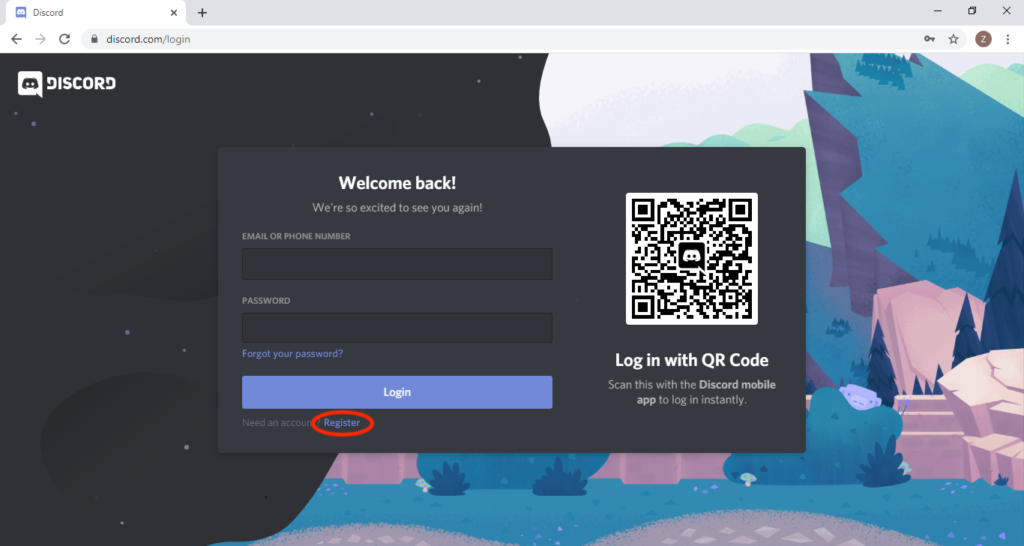
now fill out the signup and click “Continue” to get an account.

Discord should now start running in your browser. You can use it in your browser whenever you want by going to discord.com and logging in. However if you want to get the app and have it be more convenient then it already is do the following
1: Go to discord.com click on “Download”
2: Click select your device and click “Download”
3: Go to your downloads folder and run the .exe file
Connecting to the Discord server
Now that you (probably) have discord we have to go through the painful steps of connecting to the losercraft Discord chat, this is where all the people on the minecraft server hang out and chat about video games. Because the Discord server is a private server I cant just give you instructions on how to join the server because this is a public website, I also don’t want to give you instructions on how to send me a friend invite because I don’t want some stranger to find this website and send me a friend request, thus the easiest way to make this work is for you to send my mom or brother your discord username and number so I can send you a friend invite so you can except it so I can send you an invite to the server. to do all of this fallow the steps below.
if you don’t have discord then just call the admin so he can tell you how to connect to the servers.
1: Open discord
2: In the bottom left of the screen you should see a little box with your username and a little number.
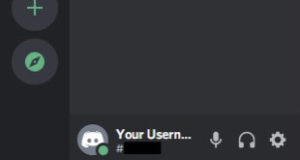
3: Send my bro or my mom your username and the 4 digit number (it is K sensitive), this will allow me to send you a friend request. If you send it to my mom make sure to tell her that it’s for me.
4: Wait for me to realize you sent me your information and I will send you a friend invite, I will also send you a text or something so you know that I sent the invite because you have to except it for it to work
Connecting To The Servers
Now that you are (hopefully) on the discord server you now have access to the Minecraft server IP’s we can get you connected to the Minecraft servers, just follow these steps.
1: Open Minecraft and launch the game
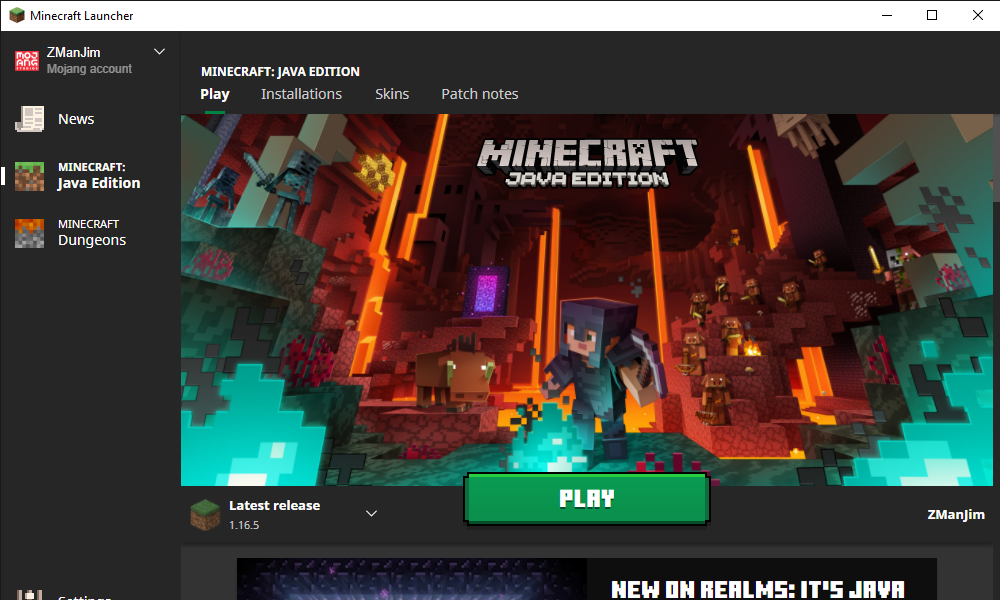
2: Click “Multiplayer”
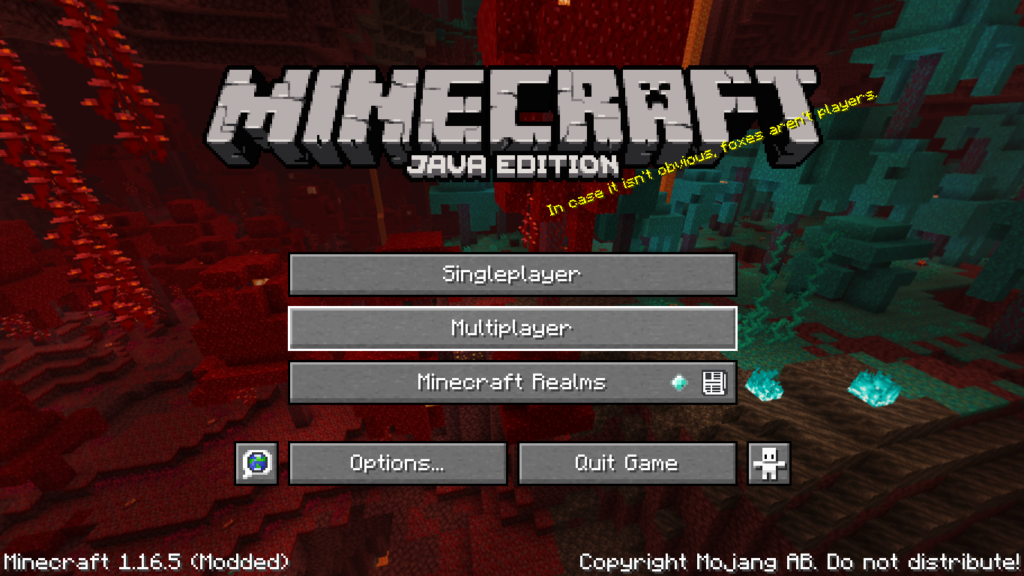
3: Click “Add Server”
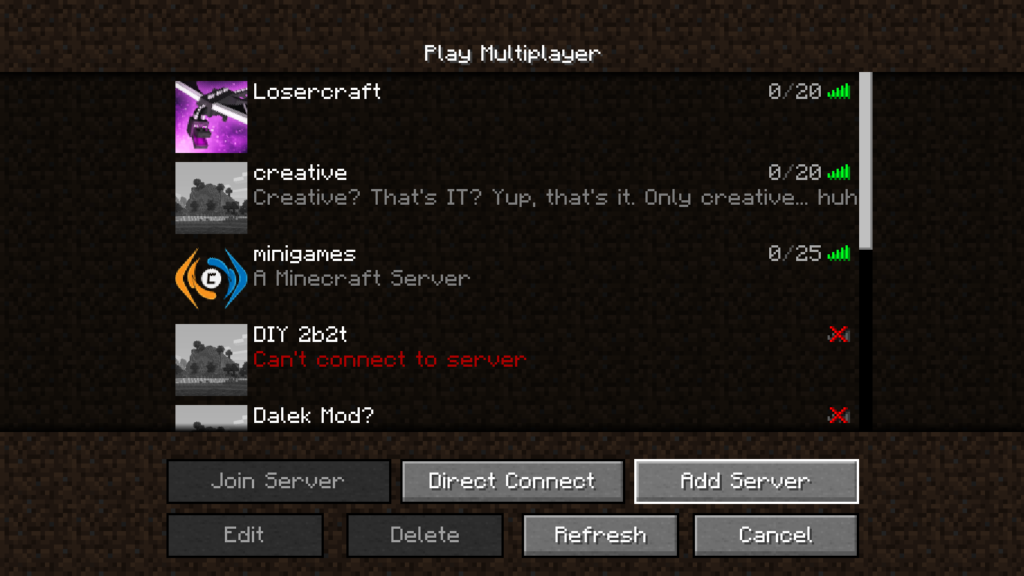
4: Now you need to get the server IP’s from discord so if you’re in full screen then hold down the ALT key and hit the tab key. (If you’re on MAC then use command + tab)
5: Go to discord
6: Go to the losercraft chat
7: Click on “server-info”
8: Click the little pin image in the top right of the screen.
9: You now have the server IP’s
10: Copy the IP of the server you want. (CTRL + C)
11: hold ALT and hit tab to go back to Minecraft

12: Click the “Server Name” box and name the server
13: click the “Server Address” box and paste (CTRL + V)
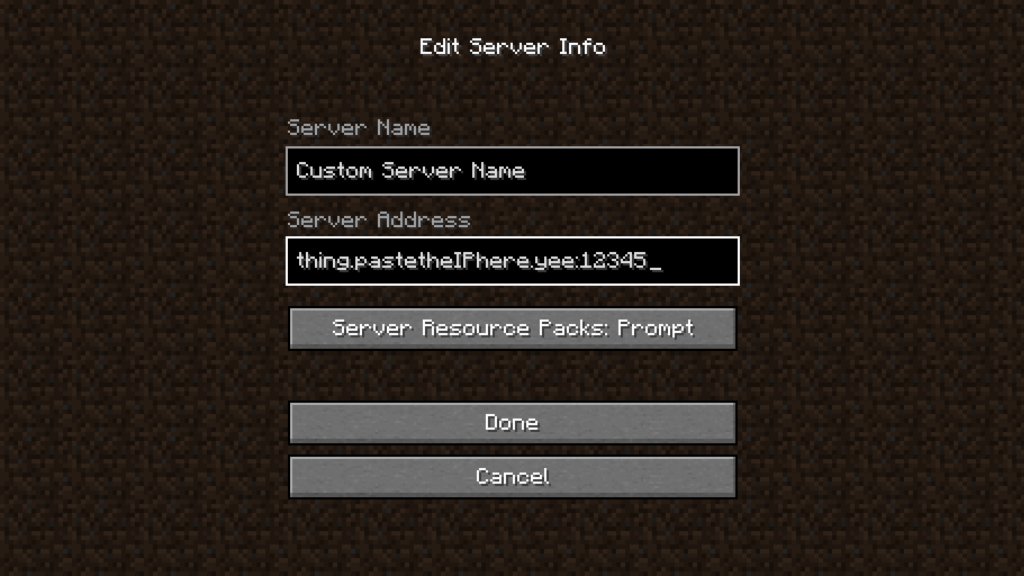
14: Repeat steps 3-13 for all the servers you want to be able to join
15: YOU’RE DONE!!! You can now play on the server
OptiFine (Optional)
You want more? The really long explanation of how to join the server wasn’t long enough for you? You want more screenshots that take up half the screen and are annoying to people who know what they’re doing? Well FEAR NOT there is still an explanation of how to get OptiFine… What is optifine?
Optifine is a minecraft mod that makes your game run faster. OptiFine also give you more settings to change like increased render distance, no fog, higher clouds, etc. It also gives you the option of dynamic lights. Dynamic lights is a setting you can turn on that makes Items in your hand glow and also entities like flaming arrows or dropped items.
How To Install OptiFine
I working on it